Short answer: automate review requests so every customer gets a short, friendly ask shortly after real completed work, with a direct link to your review page, one reminder a few days later, and an easy way to tell you privately if something went wrong. Do not offer incentives for reviews, and do not filter who gets asked based on whether they seem happy. Both conflict with platform policies and FTC rules.
Why automation matters for reviews
Most satisfied customers are willing to leave a review, but few do it unprompted. Busy technicians forget to ask, office staff do not have time, and a week later the moment has passed. A review request triggered by the job-complete status in your software solves this, because it happens every time, at the right time.
Know the rules first
Reviews are regulated. The FTC announced a final rule in August 2024 banning fake reviews and testimonials, including buying reviews and certain review-suppression practices, and allowing civil penalties for knowing violations. Platforms have their own policies too; Google's policy on fake engagement prohibits incentivizing reviews and selectively soliciting positive ones.
Practical rules for your automation:
- Ask every customer who received the service, not only the ones you think are happy.
- No incentives for leaving a review: no discounts, gift cards, contest entries.
- No fake or employee reviews, and no reviews written for customers.
- Do not pressure or suppress. Do not threaten customers or hide negative reviews.
The review request flow
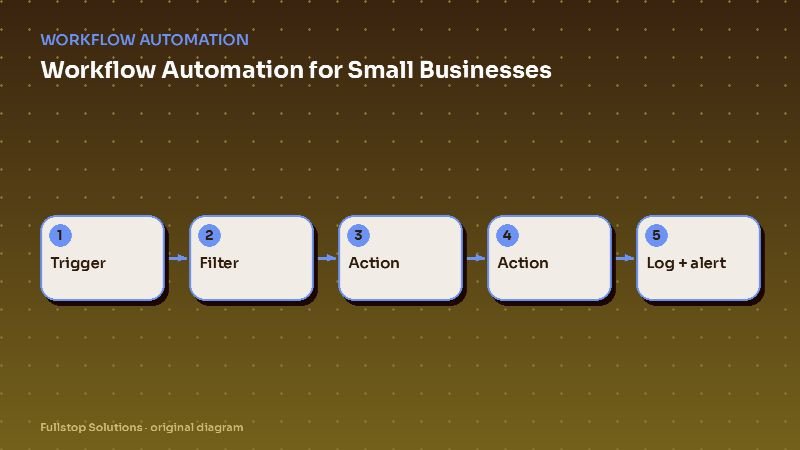
1. Trigger on real completion
Use the job-complete, appointment-checked-out or order-delivered status in your system as the trigger. Never send review requests to people who have not received the service.
2. Wait a sensible time
Timing depends on the business:
- Home services, auto repair: a few hours after completion, once the customer has seen the result.
- Restaurants: later the same day or the next morning.
- Salons and spas: the same evening.
- Remodeling and larger projects: after the final walkthrough, and perhaps a few days of living with the result.
3. Send a short, personal ask
"Hi Tom, thanks for choosing Greenway Lawn today. If you have a minute, would you share your experience? [review link] If anything wasn't right, just reply to this message and I'll fix it. – Alicia"
Note what is there: the business name, a direct link, a real person's name, and an easy way to raise a problem. Note what is not: an incentive or a "were you happy?" gate.
4. One reminder
If they have not clicked after a few days, one gentle reminder. Then stop.
5. Problem alerts
Any reply that suggests a problem goes straight to the owner or manager with the job details. Fixing a problem quickly is the right thing to do, and it is entirely separate from the review ask. You are not stopping the customer from reviewing; you are helping them.
6. Respond to reviews
Automation can alert you to new reviews so you can respond promptly. Write responses yourself, or have drafts prepared for a person to edit. Thank positive reviewers, and respond to negative ones calmly with an offer to resolve offline.
Direct links and multiple platforms
Use a direct link that opens the review form on your primary platform (often your Google Business Profile). If you want reviews on more than one platform, you can rotate links or offer a choice, but keep it simple; too many choices reduce follow-through.
Industry notes
- Home services: technician names in the request feel personal. See home services automation.
- Restaurants: tie to reservations or online orders; walk-in diners are harder to reach and that is fine.
- Auto repair: send after pickup, not after the repair is finished but before the customer has the car back. See auto repair automation.
- Lawn care and recurring services: do not ask after every visit; ask after the first few visits and then periodically. See lawn care automation.
Measuring the impact
Track monthly: requests sent, click rate, new reviews, average rating, and problem replies received and resolved. Watch the problem replies closely: they are free feedback on your operations.
Mistakes to avoid
Gating. Sending only happy customers to public reviews and unhappy ones to a private form conflicts with platform and FTC guidance. Ask everyone.
Incentives. Even small ones. Do not.
Sending too early. Asking before the customer has experienced the result produces fewer and weaker reviews.
Ignoring negative reviews. A calm, helpful response often matters more to future customers than the review itself.
Questions to settle before setup
Which status in your software means the job is truly complete? How long after completion should the request go out for each service type? Whose name should sign the message: the technician, the owner or the office manager? Which review platform is your priority? Who receives problem replies, and how fast do you commit to responding? Write the answers down, have your team agree, and then let the automation apply them the same way every time.
How one week of review requests runs
A plumbing company completes 40 jobs in a week. As each job is marked complete and paid in the field service software, a timer starts. Two hours later, the customer receives a short thank-you text with the technician's name and a direct link to the company's Google review page. Every customer gets the same message; nobody is screened out based on how the job went.
Three days later, customers who have not clicked receive one reminder by email. That is the last message. Customers who opted out of texts get email only.
When a new review appears, the office manager is notified. Positive reviews get a short, personal thank-you reply. A two-star review about a late arrival gets a calm public reply and a call from the owner, logged in the CRM.
At the end of the month, the report shows requests sent, reviews received and average rating, by technician. The numbers come from your own system, which makes them useful for coaching.
Where to start
Connect your job-complete trigger to a single, well-written review request with one reminder and problem alerts. That is enough for most businesses. Our digital marketing services cover review responses and local search more broadly, and the workflow automation guide explains how to connect the trigger.